Stop recording. Paste it in Slack.
Easy Cast records your Mac, zooms in on what you click, and hands you the finished video the moment you stop — already on your clipboard. No upload, no link, no account. Screenshots and annotation live in the same app.
Signed with a Developer ID and notarised by Apple · Requires macOS 15 or later · Subtitles need macOS 26 · No account
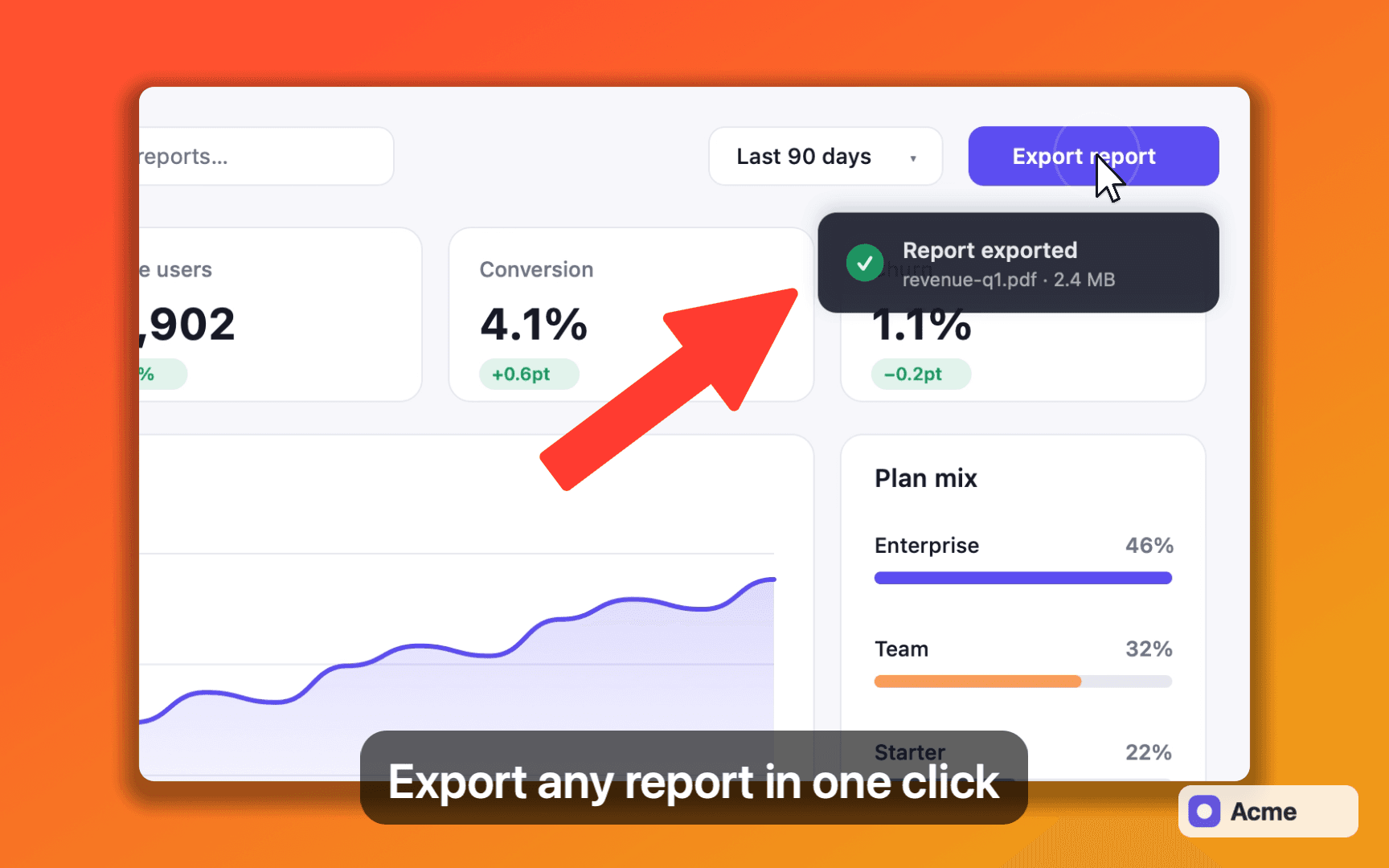
Acme-export.mp4 · 1.8 MB
Three seconds from stop to sent.
There is no export dialog, no upload, no link to expire and nothing for the other person to sign into. The editor is there when you want it — it just isn’t on the critical path.
Pick what you're showing
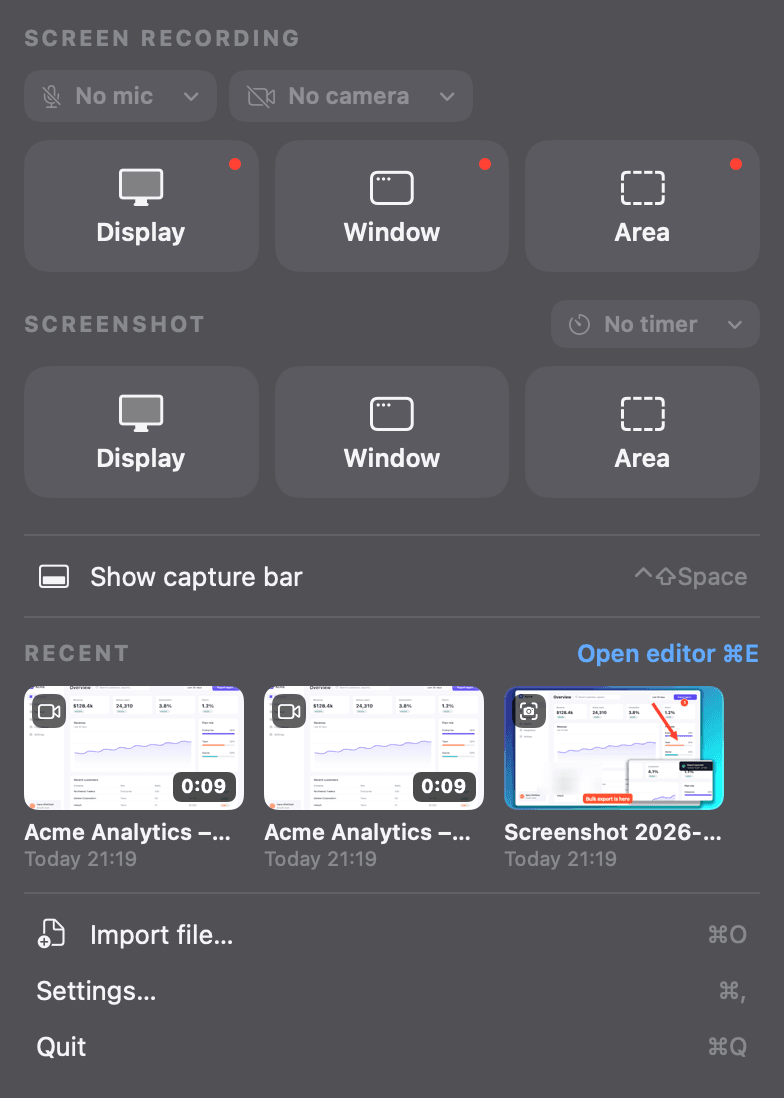
Hit ⌃⇧R, or bring up the bar with ⌃⇧Space. Display, window or area. It never steals focus from the app you're demoing, and it floats over full-screen apps.
The widget is already finished
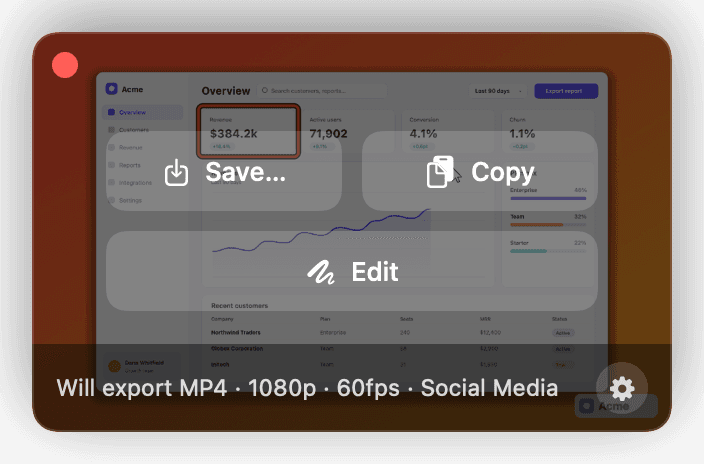
Stop, and a small preview appears where you were working — looping the composited result, with the zooms, background, cursor and subtitles already on it. One click copies it.
⌘V, anywhere
Slack, Teams, a pull request, a Linear ticket, an email. It’s a file rather than a link, so it still plays in three years and needs no account to watch.
Acme-export.mp4 · 1.8 MB
Everywhere else
Stop. Open the editor. Wait for it to load. Set a background. Add the zooms. Export. Choose a folder. Wait for the encode. Find the file. Drag it in.
Or: stop, wait for the upload, copy a link, paste the link, and hope they click it — assuming your plan still lets you download your own video at all.
Easy Cast
Stop. Click Copy. ⌘V.
The zoom, the background, the cursor, the subtitles and your logo are already on it, because they’re composited at export rather than bolted on afterwards.
Zoom you can see, and delete.
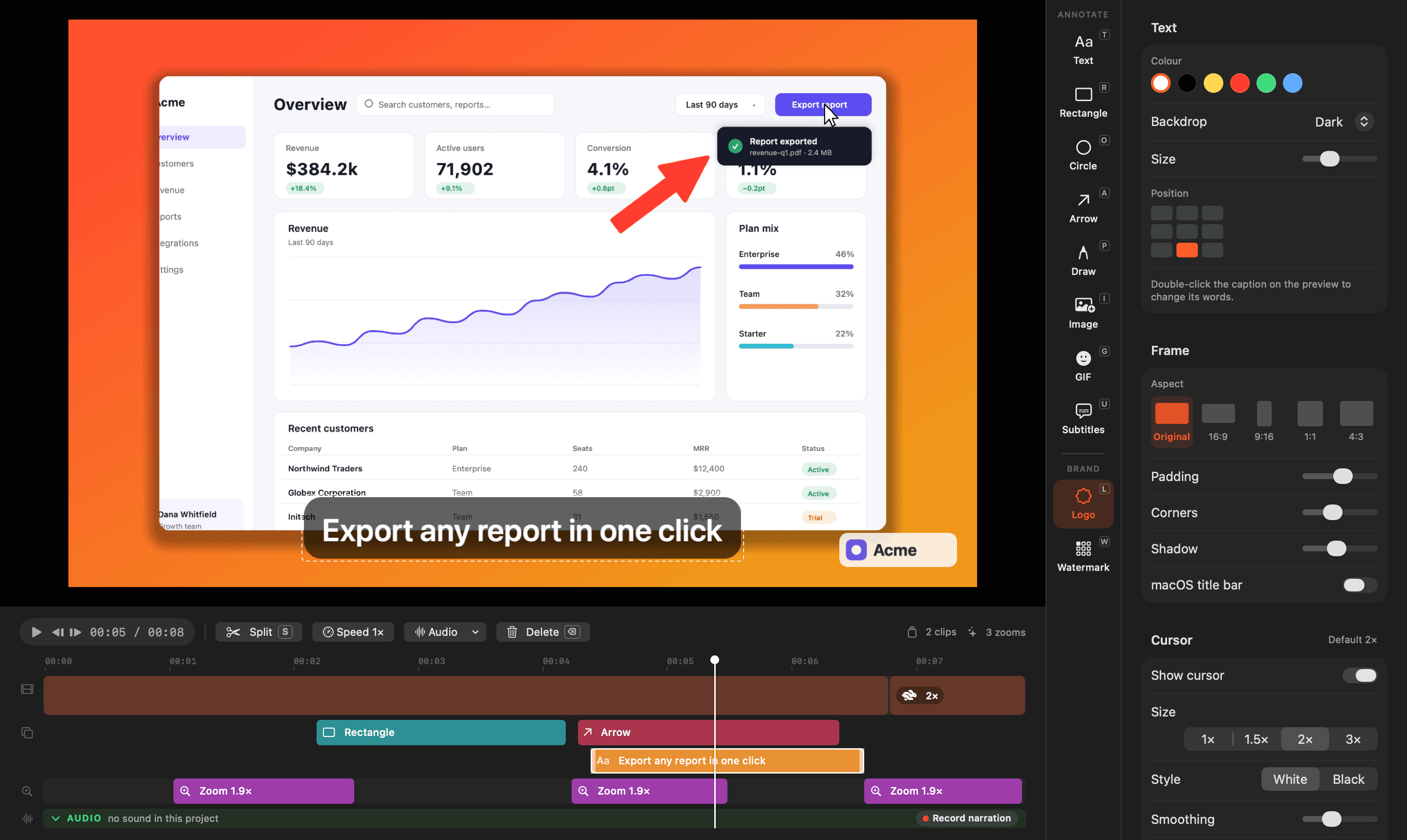
Clicks and scrolls become punch-ins with a dead-zone camera — the frame only follows once the cursor leaves the middle of the shot, like a platformer camera, so nothing chases every twitch. Every zoom lands on the timeline as a labelled block. Don’t like one? Select it and press delete.
Raw captureEasy Cast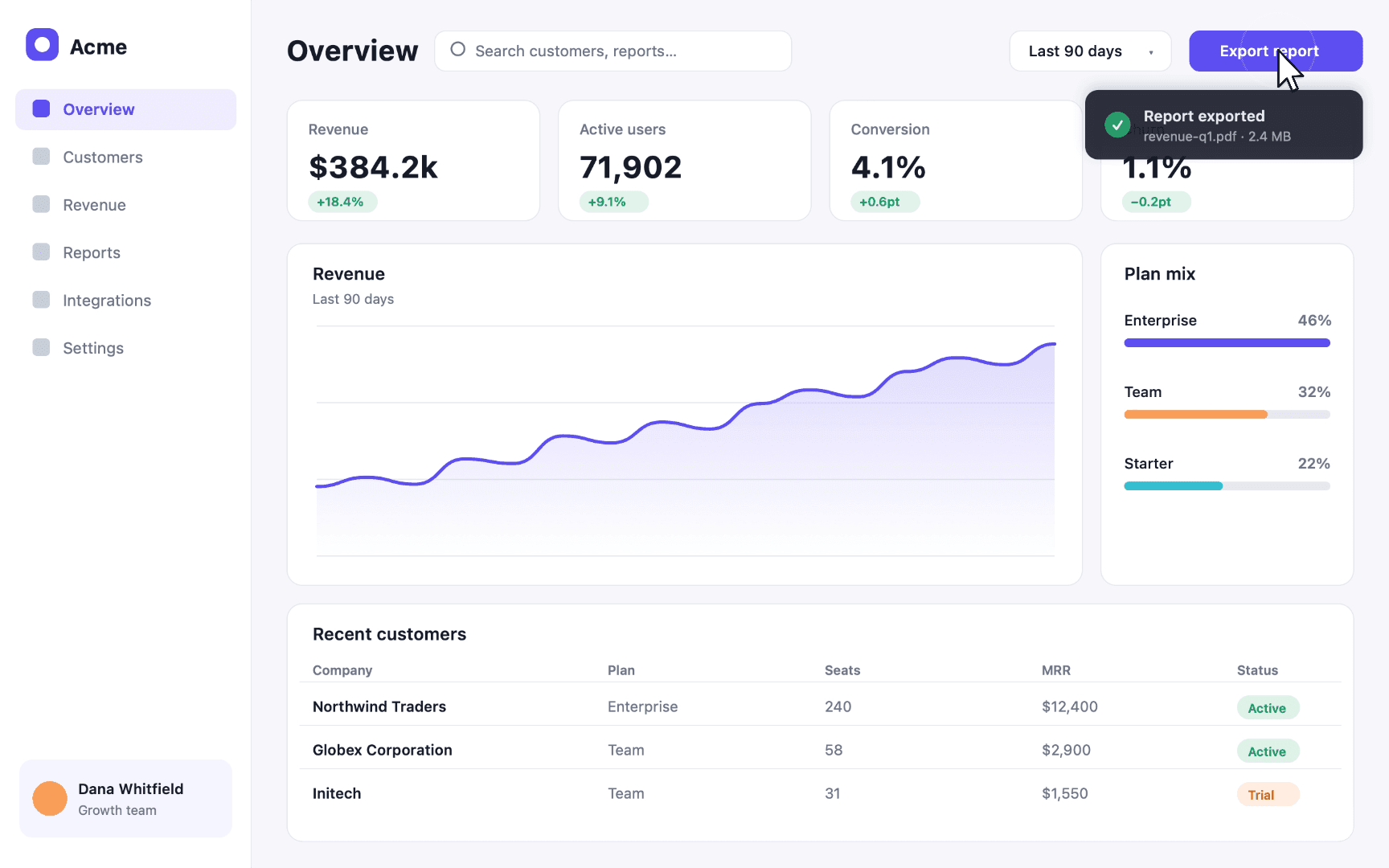
Drag to compare the raw capture with Easy Cast’s export of the same moment.
Screenshots aren’t a second app.
Same capture bar, same shortcuts, same editor. Grab a display, a window or an area; drop several shots on one canvas and lay them out in a row, a column or a grid; highlight, blur what shouldn’t be shown, number the steps, crop, and export PNG or JPEG at full resolution. Your logo and watermark carry across from your videos, because it’s the same renderer underneath.
Screenshots
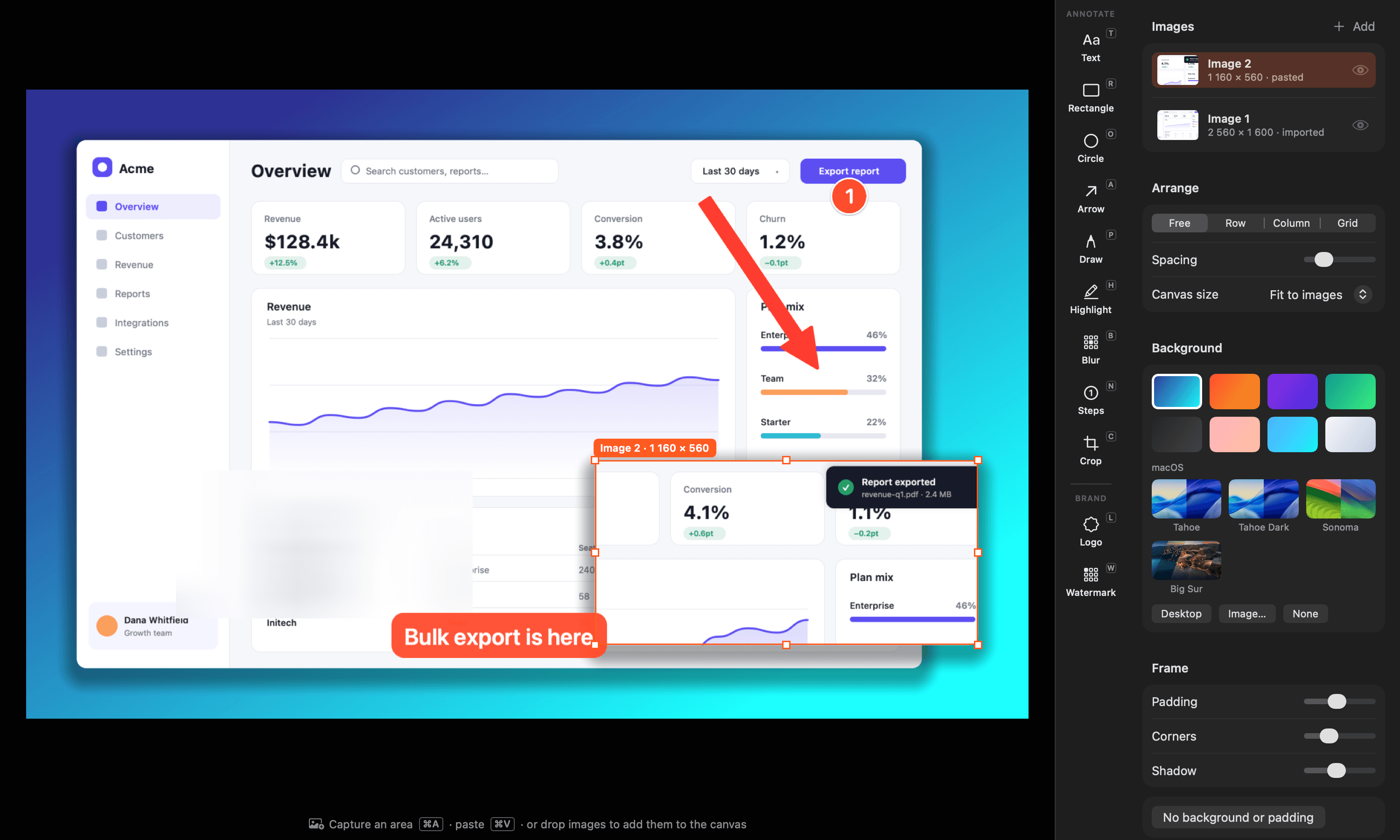
Highlight
Sweep a marker over the number that matters.
Blur
Hide names, emails and anything else private.
Steps
Click in order to drop numbered badges.
Crop
Trim any image on the canvas, non-destructively.

Point at the thing you’re talking about.
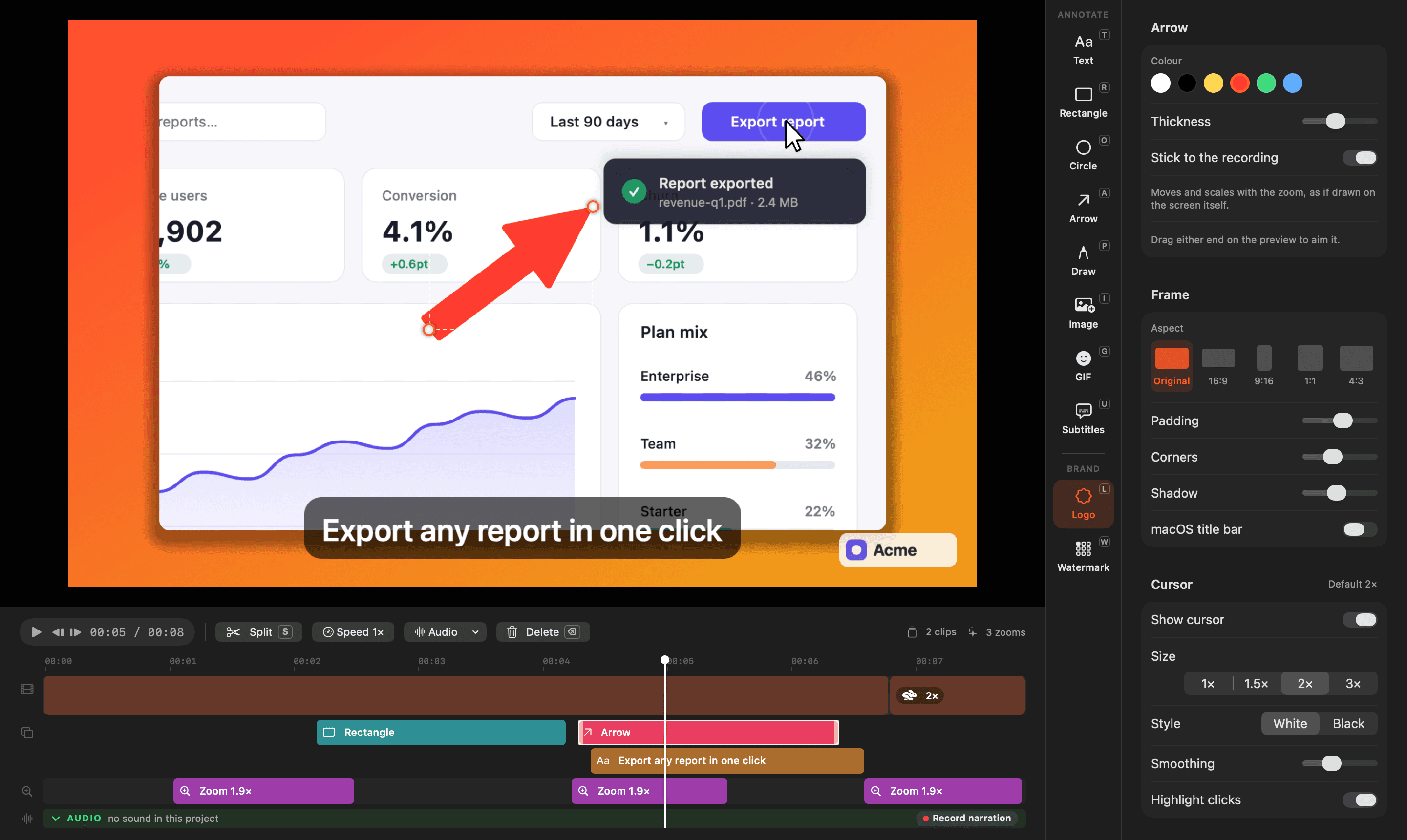
Arrows, boxes, circles, text and freehand, drawn straight onto the video and rendered at export — so you can move them, restyle them or take them off again afterwards. Shapes can stick to the recording and travel with the zoom, as if you had drawn on the screen itself. Drop in a GIF when words won’t do it.
This is the thing the beautiful screen recorders still won’t do.

Cut it, speed it up, re-record the narration.
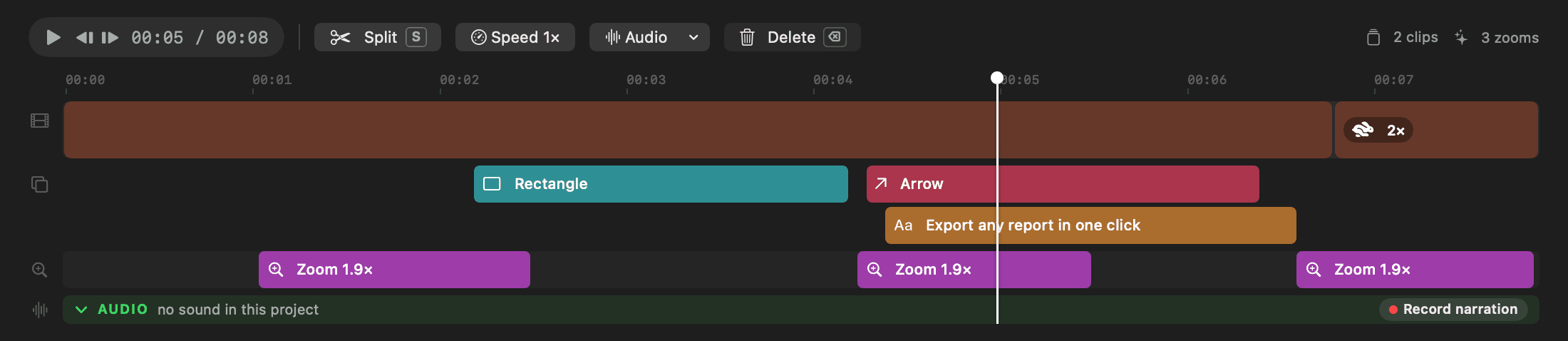
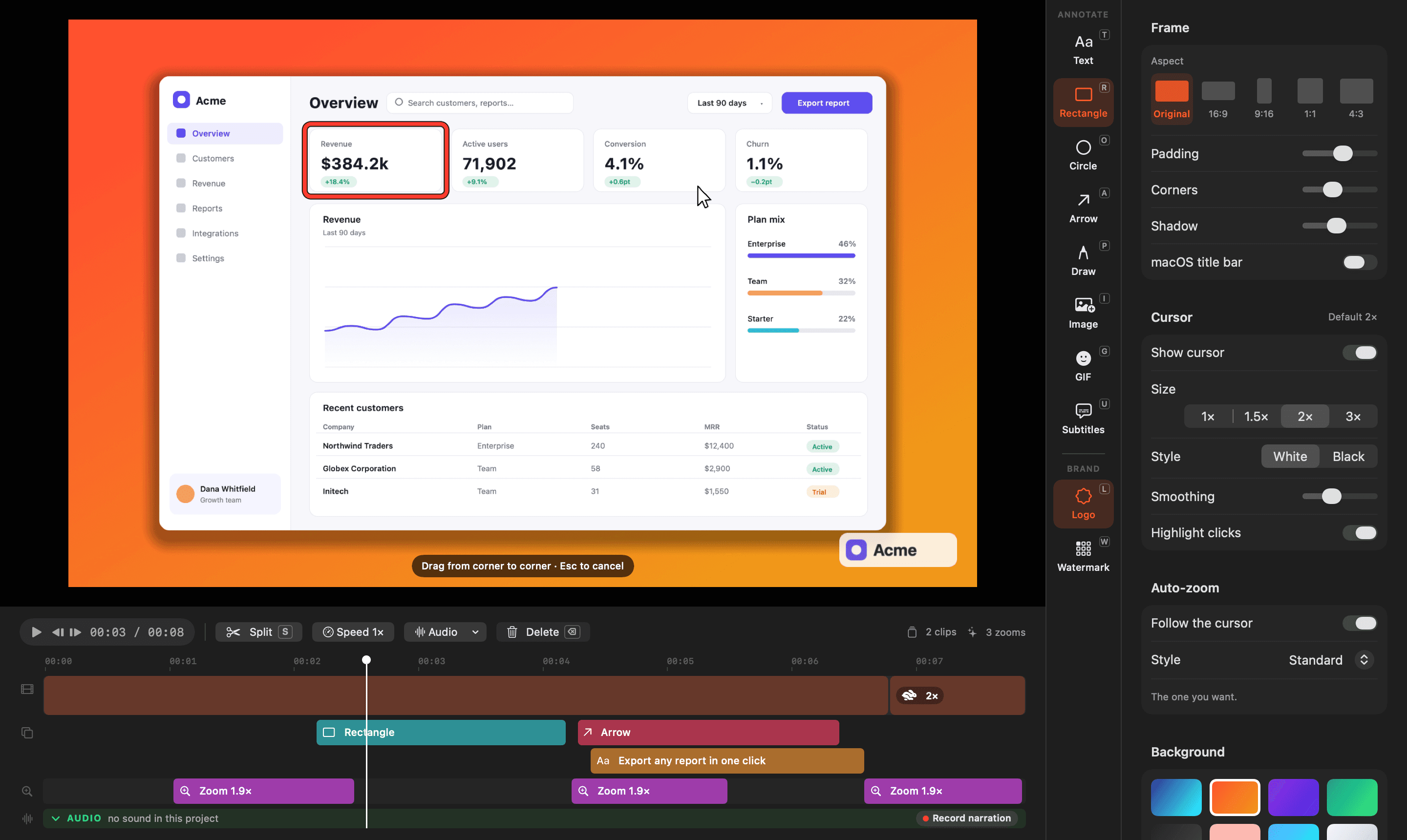
A four-lane timeline — clips, annotations, zooms and audio. Split and delete, run the slow parts anywhere from 0.25× to 4× with narration holding its pitch, and re-record the voiceover over a finished take without recording the screen again. System audio and your microphone arrive as separate tracks, so you can mute one, delete the other, or balance them at export. Already have footage? Drop any MOV or MP4 on Easy Cast and it becomes a project — though an imported file has no cursor data, so it gets no cursor redraw and no auto-zoom.
Acme walkthrough
Backgrounds, your logo, and any shape you need.
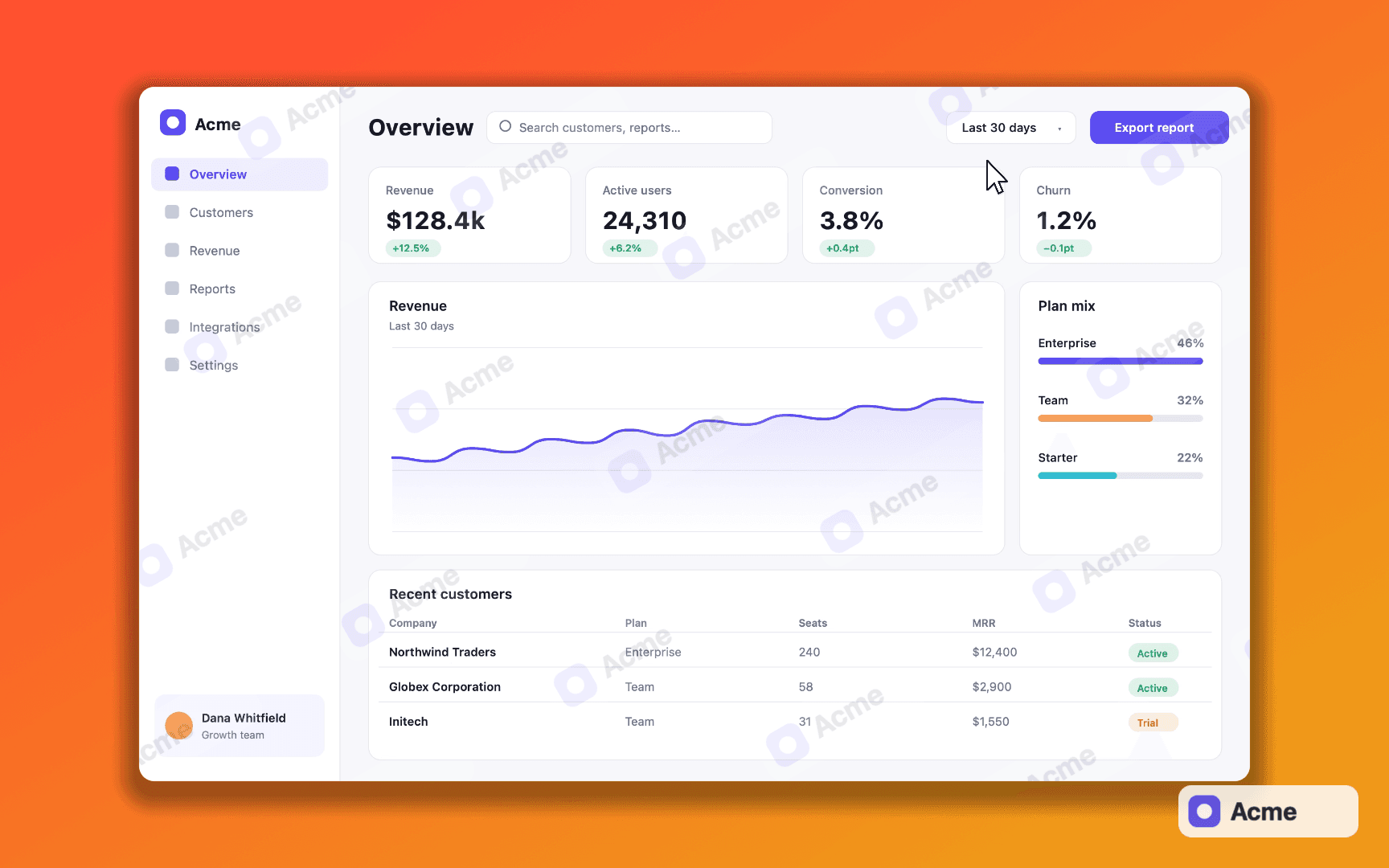
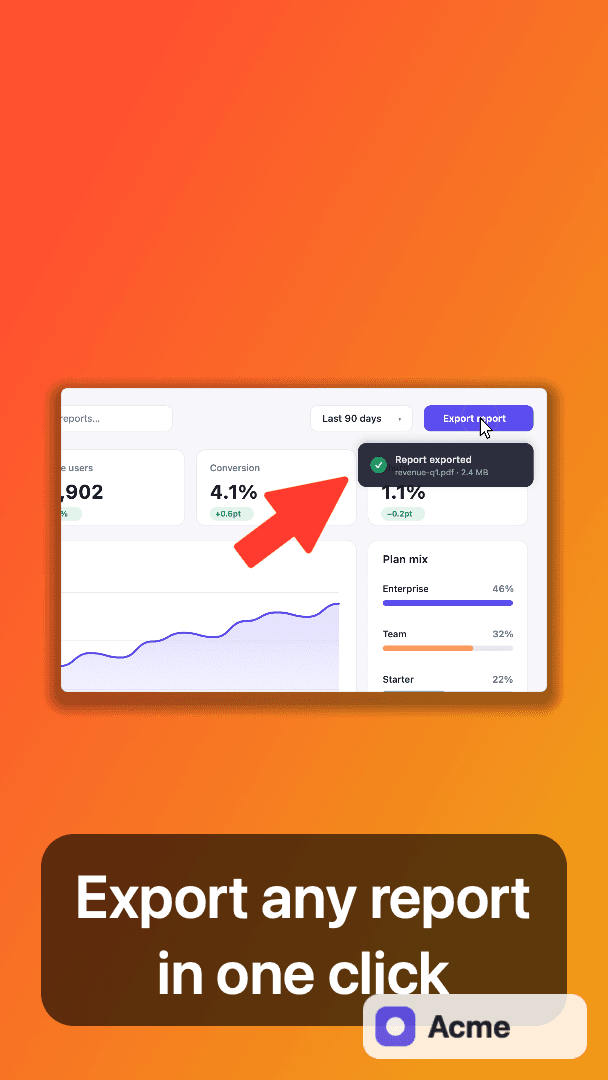
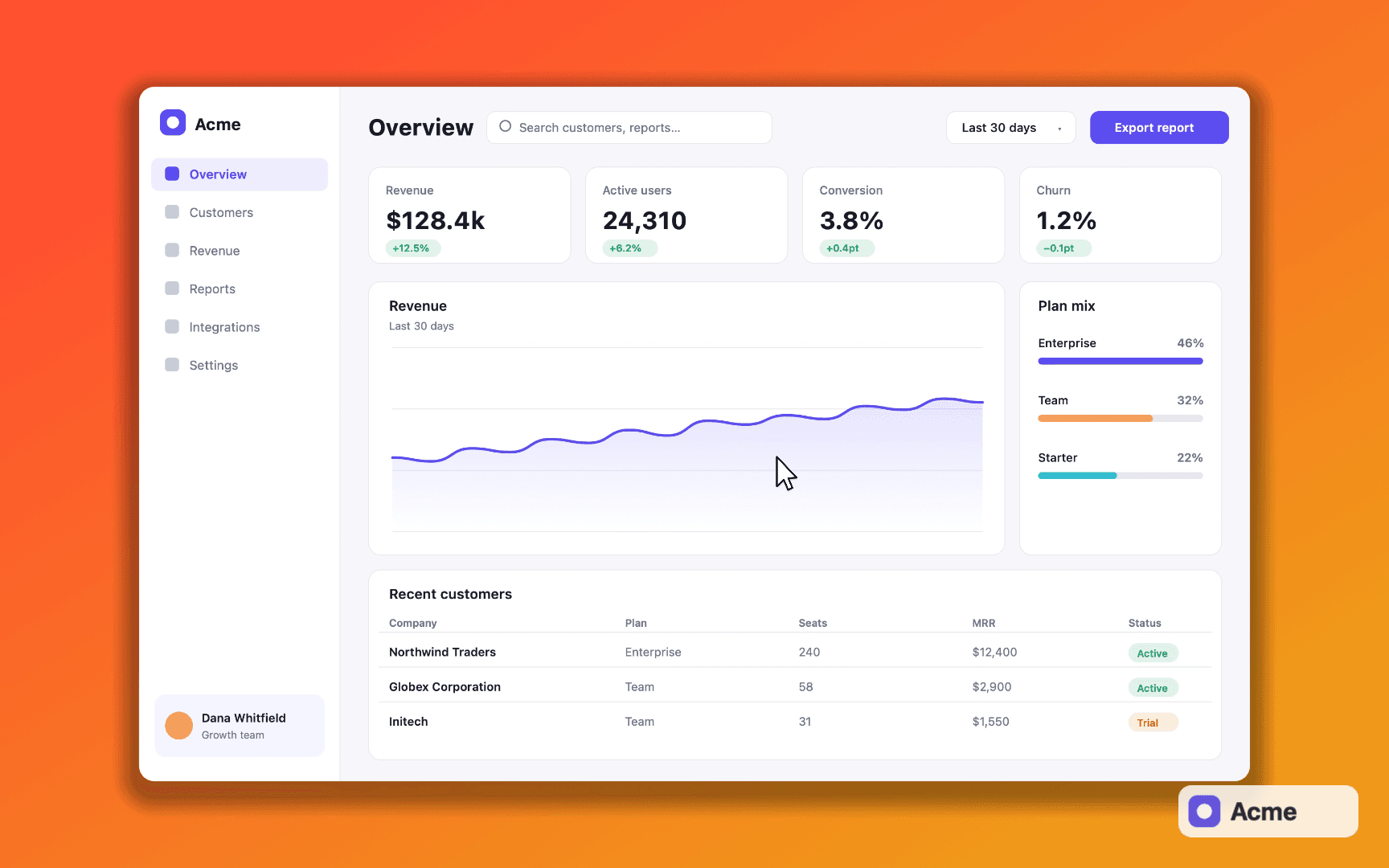
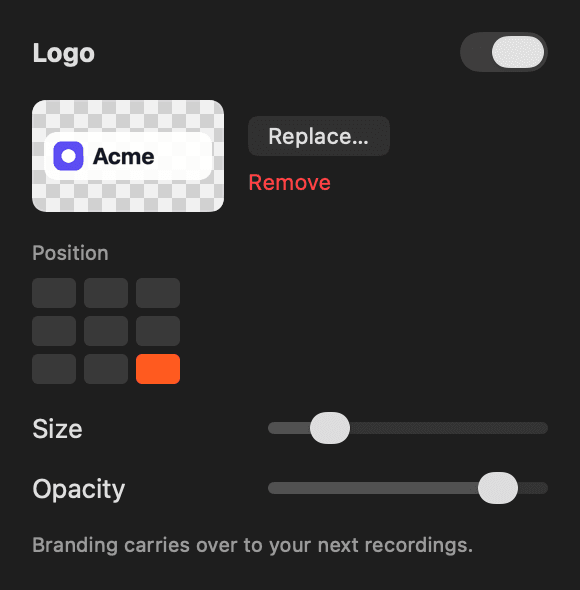
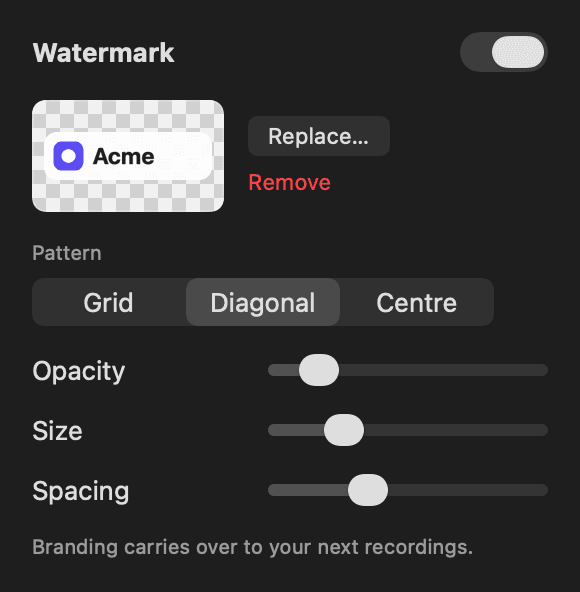
Gradients, your own desktop picture, any image, or nothing at all — with padding, rounded corners, a shadow and an optional macOS title bar. Your logo in any of nine positions, and a repeating watermark when you need one. Re-frame to 16:9, 9:16, square or the original without re-recording: the zooms, annotations and subtitles re-flow to fit.
Subtitles, written on your Mac.
Needs macOS 26Press U and Easy Cast transcribes your narration on-device — every language macOS supports, nothing uploaded, no permission prompt. Subtitles follow your cuts and speed changes and break into at most two balanced lines, and a misheard word is fixed by double-clicking it on the preview.
Which matters more than it sounds: a clip pasted into Slack autoplays silently.
Two seconds from hotkey to recording.
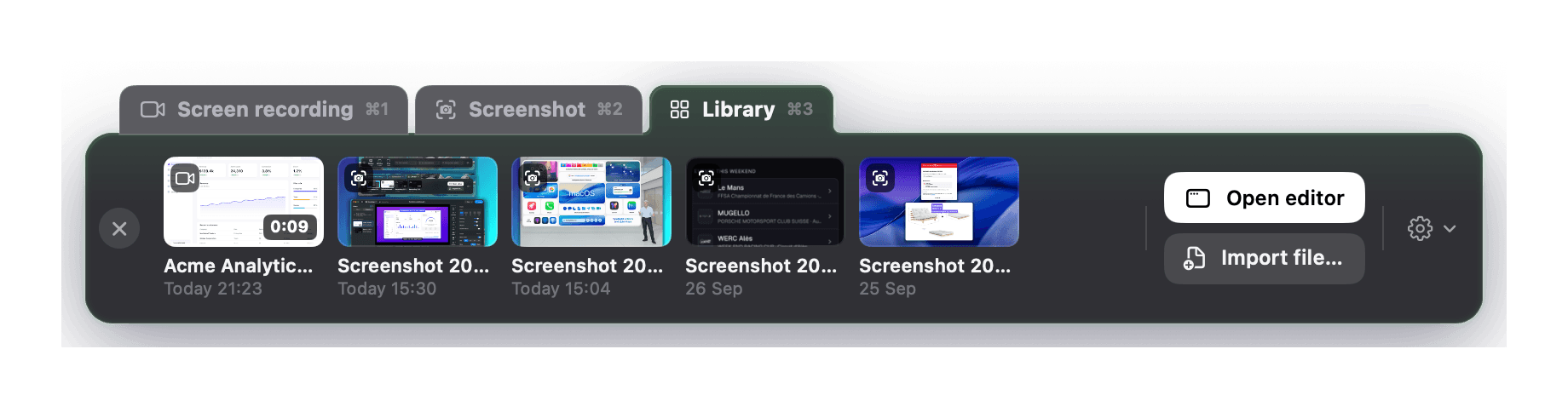
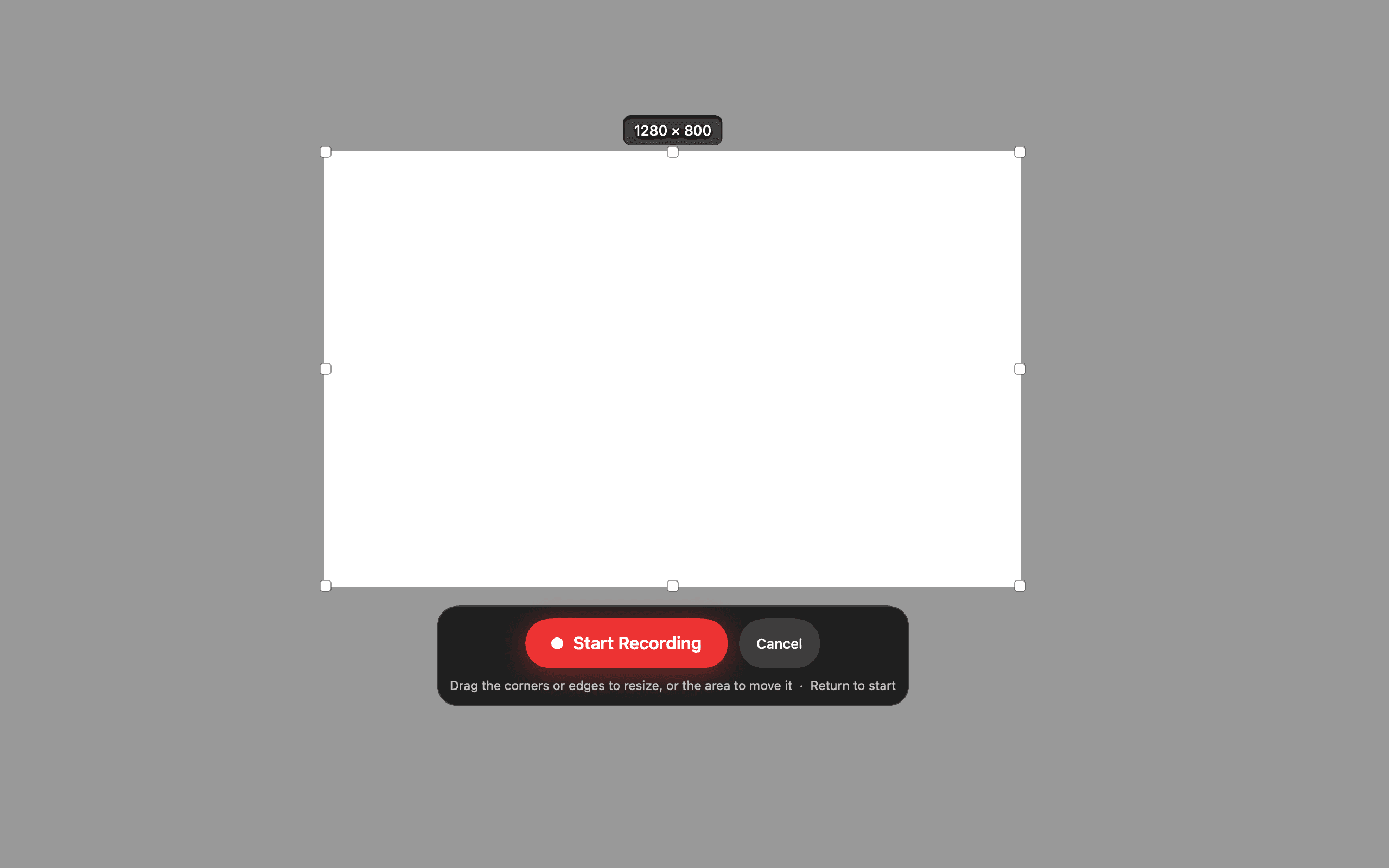
A floating bar with three tabs — recording, screenshots and library, ⌘1, ⌘2 and ⌘3. A camera chip with a live preview so you know you’re in frame, a microphone chip with a level meter so you know it’s hearing you, and a system-audio toggle that captures the app’s own sound. Areas get corner and edge handles and a size readout; everything outside the capture dims while you record.
Five global shortcuts ship set. Screenshot-display, screenshot-window and open-editor ship unset on purpose — six hotkeys taken from the system by default is more than a capture app should help itself to.
Three permissions. No account. No server.
Your recordings, screenshots, projects and subtitles never leave your Mac. There is no account to make, nothing is uploaded, and there is no telemetry, crash reporter or analytics of any kind. The only thing Easy Cast ever sends anywhere is a GIF search term, if you use the GIF picker — and you can turn that off.
| Permission | Needed for | If you decline |
|---|---|---|
| Screen Recording | Everything | Easy Cast cannot record |
| Microphone | Narration, and subtitles from it | System audio still records |
| Camera | The picture-in-picture bubble | Records without it |
Not Input Monitoring. Zooms are planned from mouse clicks and scrolls only. Your keystrokes are never watched — that is the permission which would let an app see what you type, and Easy Cast does not ask for it. It does not ask for Accessibility either.
The rest of the specification
- Requires
- macOS 15 or later
- Download
- 4.9 MB · notarised by Apple
- Version
- 0.2.0
- Built with
- Swift 6, SwiftUI, ScreenCaptureKit, Metal
- Third-party dependencies
- None
- Account
- None
- Telemetry, analytics, crash reporting
- None
- Network calls
- One — GIF search, and only if you use it
- Exports
- MP4 (hardware), GIF, PNG, JPEG
Questions people actually ask.
macOS already records my screen. Why use this?
⇧⌘5 gives you a large file with a screen-resolution cursor, no zoom, no way to point at anything, and nothing you can paste into Slack without it looking like a file drop. Drag the slider further up this page — that is the same second of footage, both ways.
Can it record my iPhone or iPad?
No. Easy Cast is for desktop apps and web products on a Mac.
Do I get a shareable link and view counts?
No links, no view counts and no comments — by design. What you get is a file you can paste anywhere, which works without an account and does not expire. If your job is knowing who watched, Loom does that and this does not.
Why do subtitles need a newer macOS than the app?
They use the on-device transcription that ships with macOS 26. The rest of Easy Cast runs on macOS 15 and later. Below 26 the subtitles tool does not appear.
Does anything leave my Mac?
Only a GIF search term, and only if you open the GIF picker, which queries a third-party GIF service. Everything else — recordings, screenshots, projects, transcription — is local. No account, no telemetry, no crash reporter. Run Little Snitch and check.
Record something. Paste it somewhere.
Easy Cast is a native Mac app — Swift 6, SwiftUI, ScreenCaptureKit and Metal, with no third-party dependencies and no account to make.
macOS 15 or later · No account, nothing uploaded